User Guide

Everything you need to get started

A complete walkthrough of every feature on SmallCapData. From reading your first signal card to asking Scout AI for a deep-dive. Jump to any section below.
Getting Started Dashboard & Navigation Deep Analysis Scout AI & Community
Getting Started
4 guides
Demo: reading a signal card on the dashboard
1 Reading a Signal Card
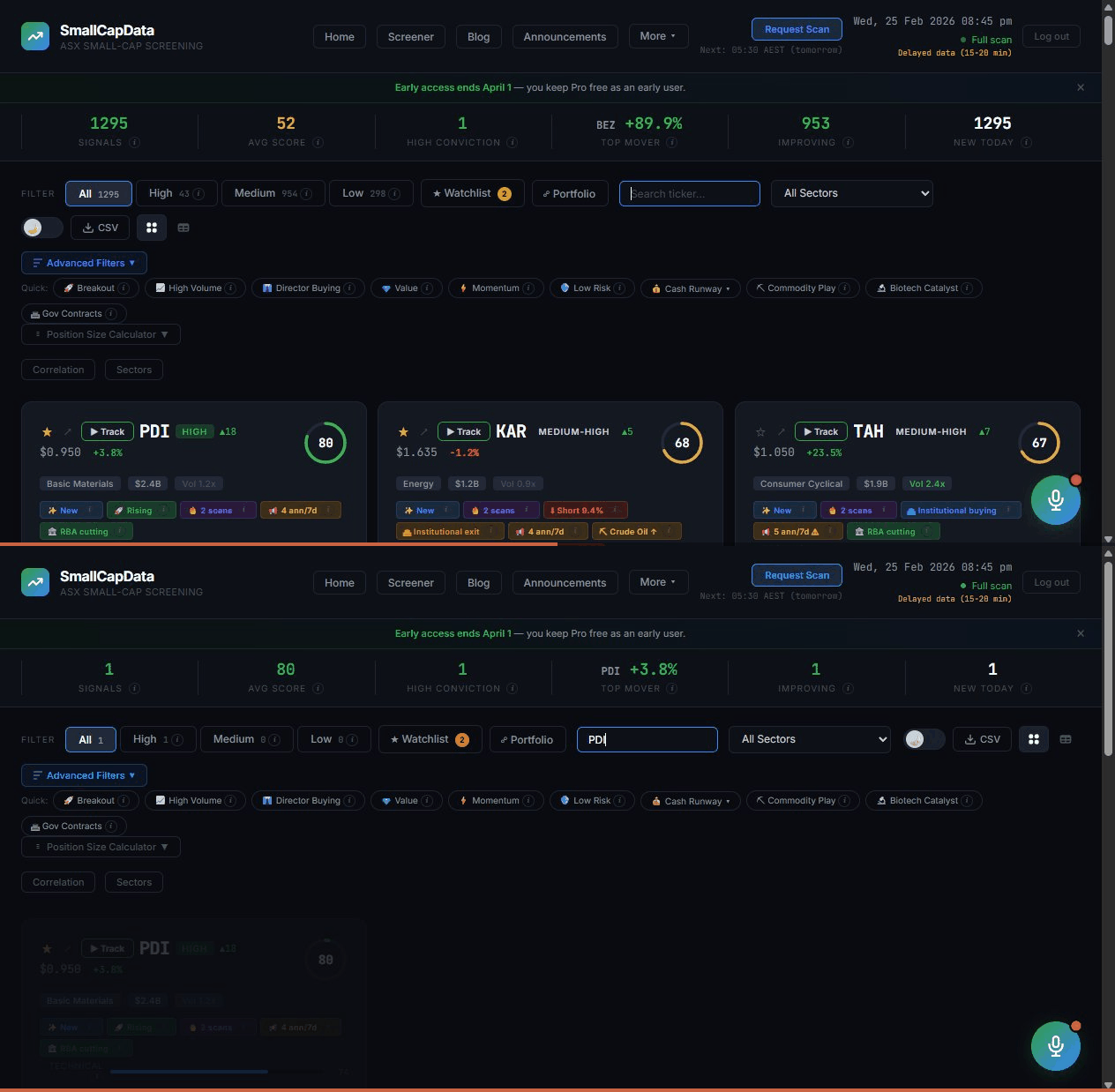
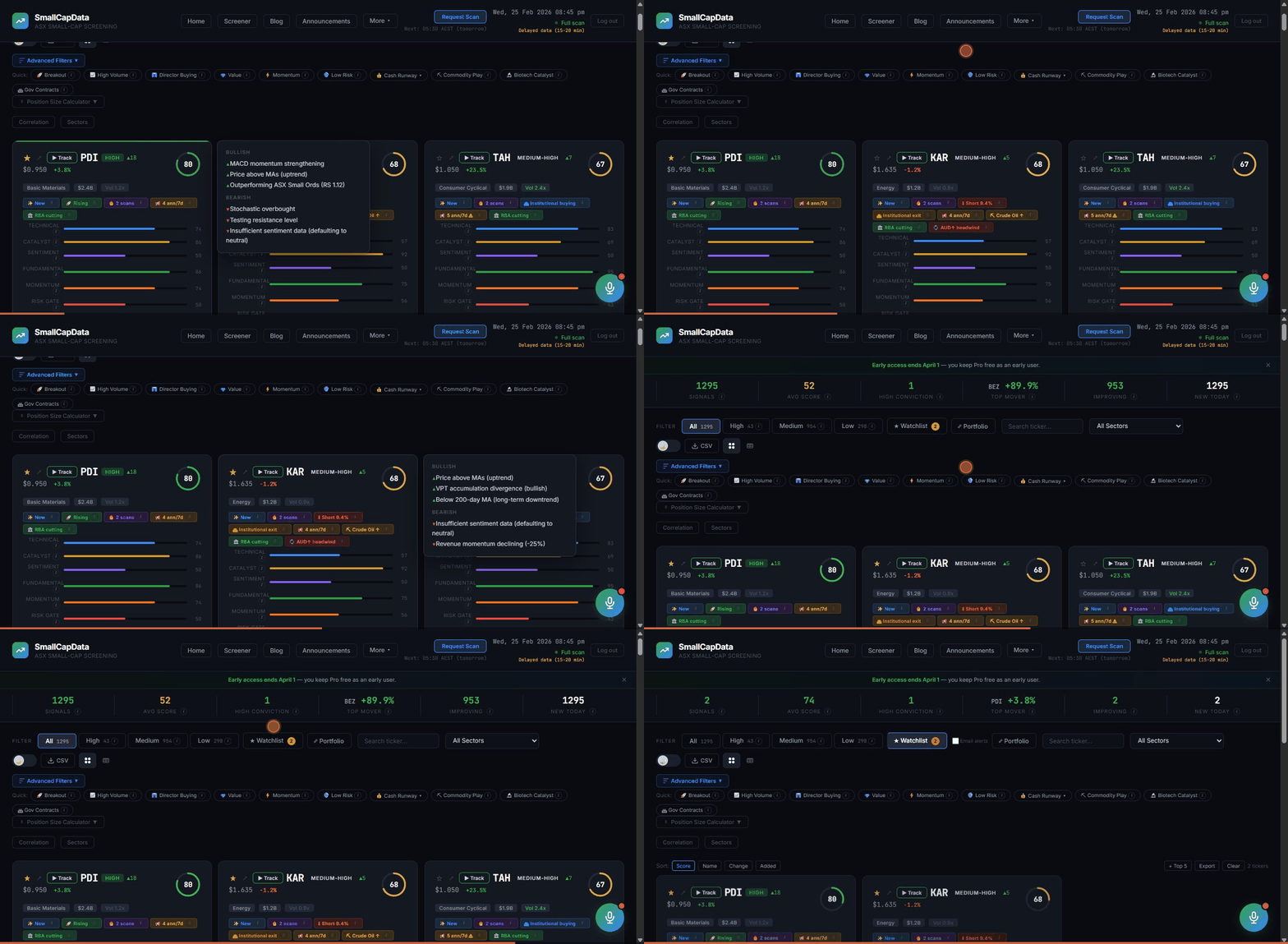
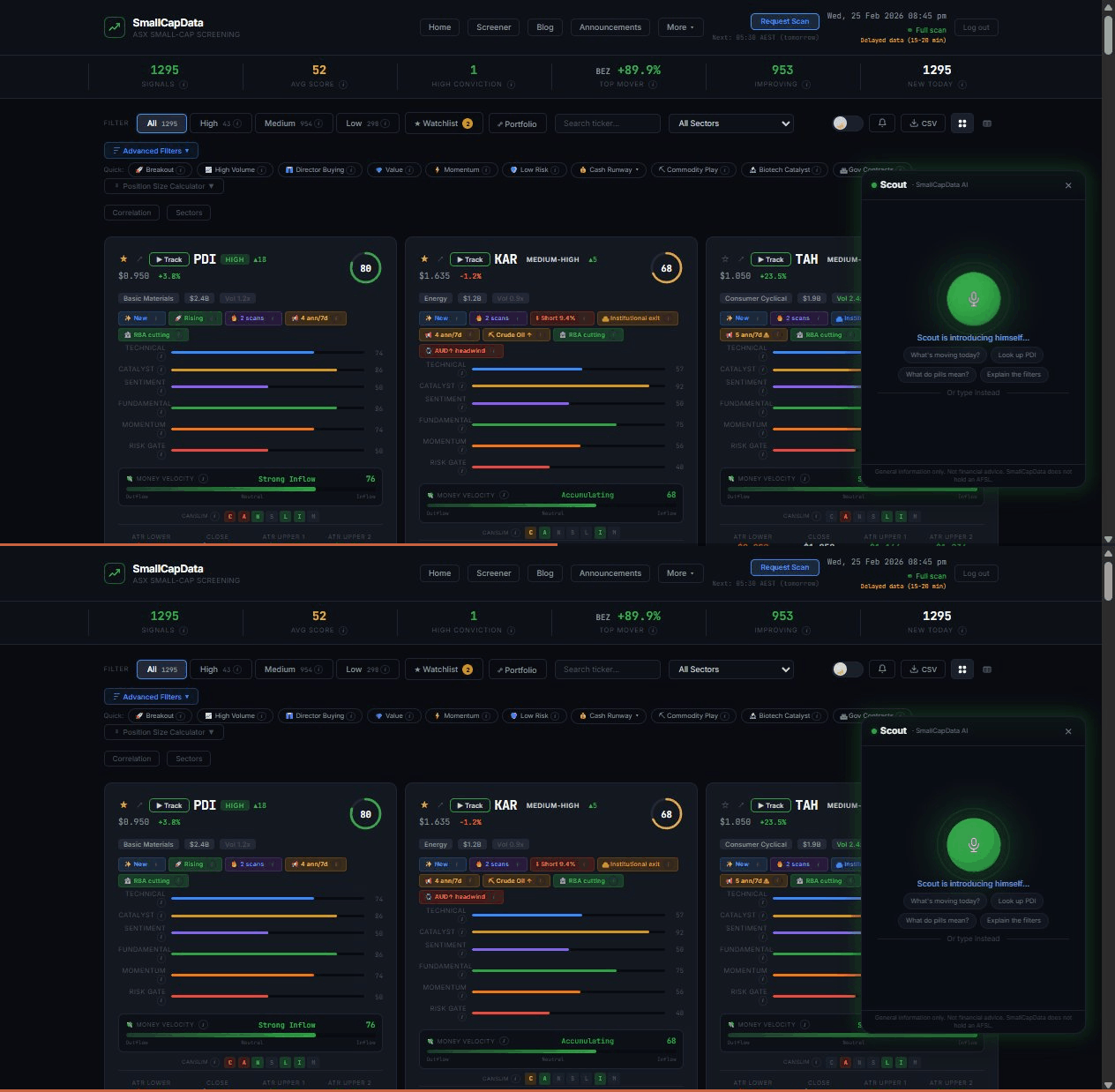
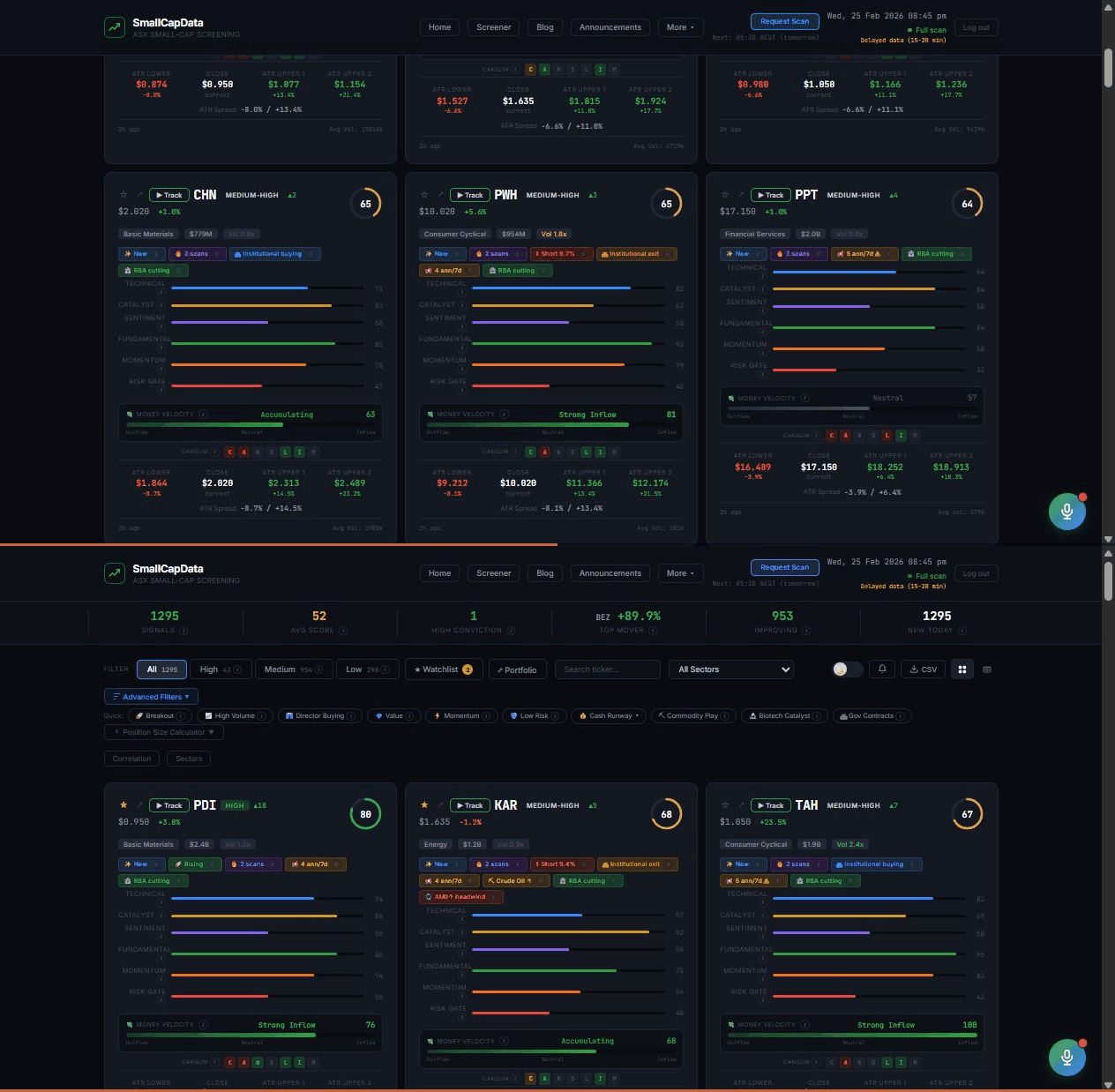
Each card shows a stock's conviction score (0–100), coloured dimension bars (Technical, Catalyst, Fundamental, Sentiment, Momentum, Risk), and enrichment pills like RBA regime, commodity exposure, or director buying. The higher the score, the stronger the combined signal.
Tip: Tap any (i) icon on a card for an instant definition of that term.
Demo: toggling between Simple and Advanced mode
2 Simple vs Advanced Mode
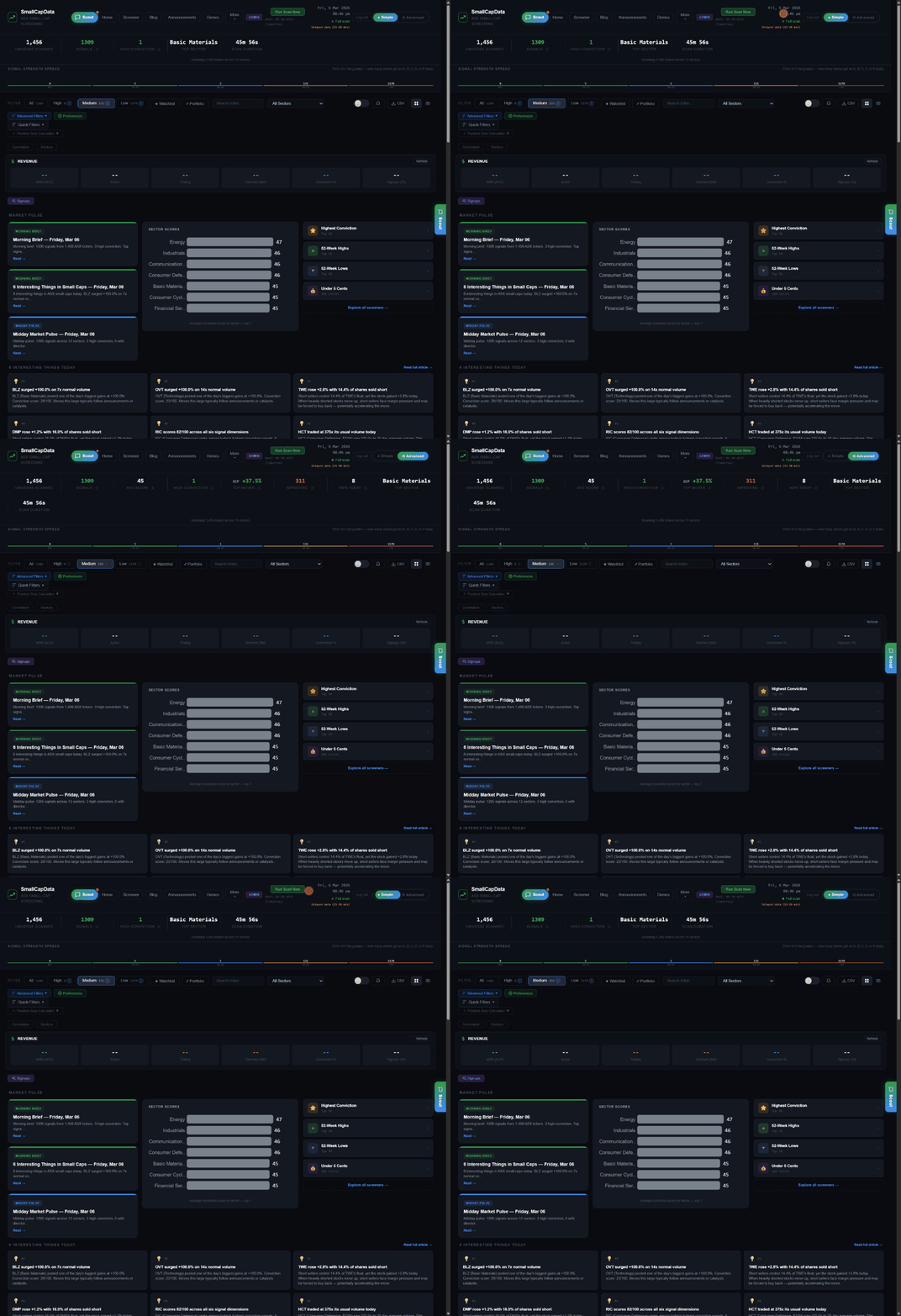
Toggle between Simple Mode (traffic-light labels, plain English summaries, beginner-friendly chips) and Advanced Mode (numeric scores, raw dimension bars, full data). The toggle sits in the top-right of the dashboard. Both modes show the same signals — just presented differently.
Tip: New to small caps? Start in Simple Mode. You can switch anytime without losing your place.
Demo: building a watchlist by starring tickers
4 Building a Watchlist
Tap the star icon on any signal card to add it to your watchlist. Switch to the Watchlist tab to see only your starred tickers. Enable email alerts to get notified when watchlisted stocks score 75+. Your watchlist syncs across devices when signed in.
Tip: Scout AI knows what's on your watchlist and can answer questions about your specific tickers.
Dashboard & Navigation
4 guides
Demo: using quick filters on the dashboard
5 Using Quick Filters
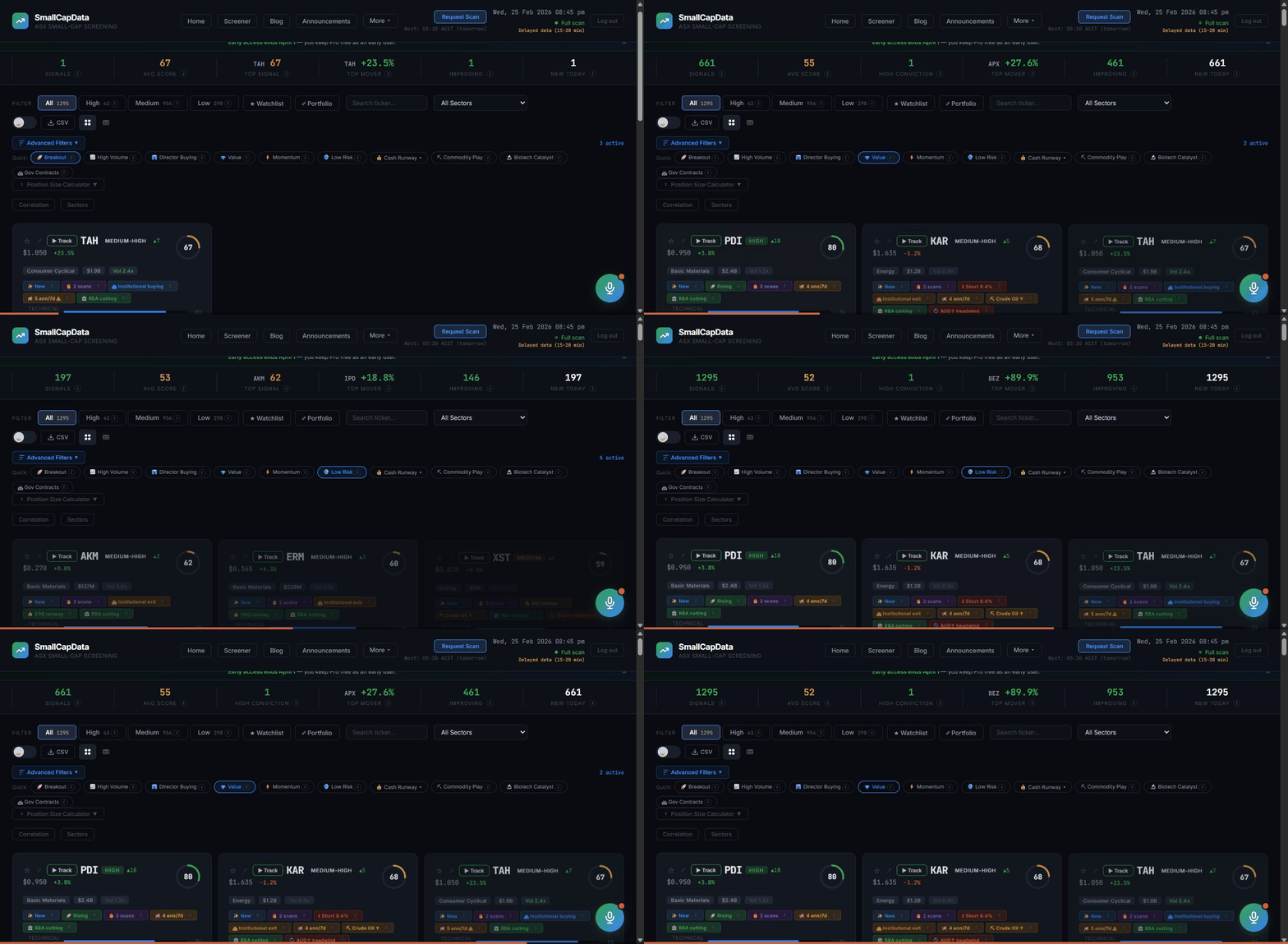
Quick filters instantly narrow signals to specific themes: Breakout (momentum + volume), Value (strong fundamentals), Low Risk (fewest red flags), Biotech Catalyst (upcoming trial results), and more. Combine with the conviction tabs and sector dropdown.
Demo: switching between card and table view
6 Switching Views
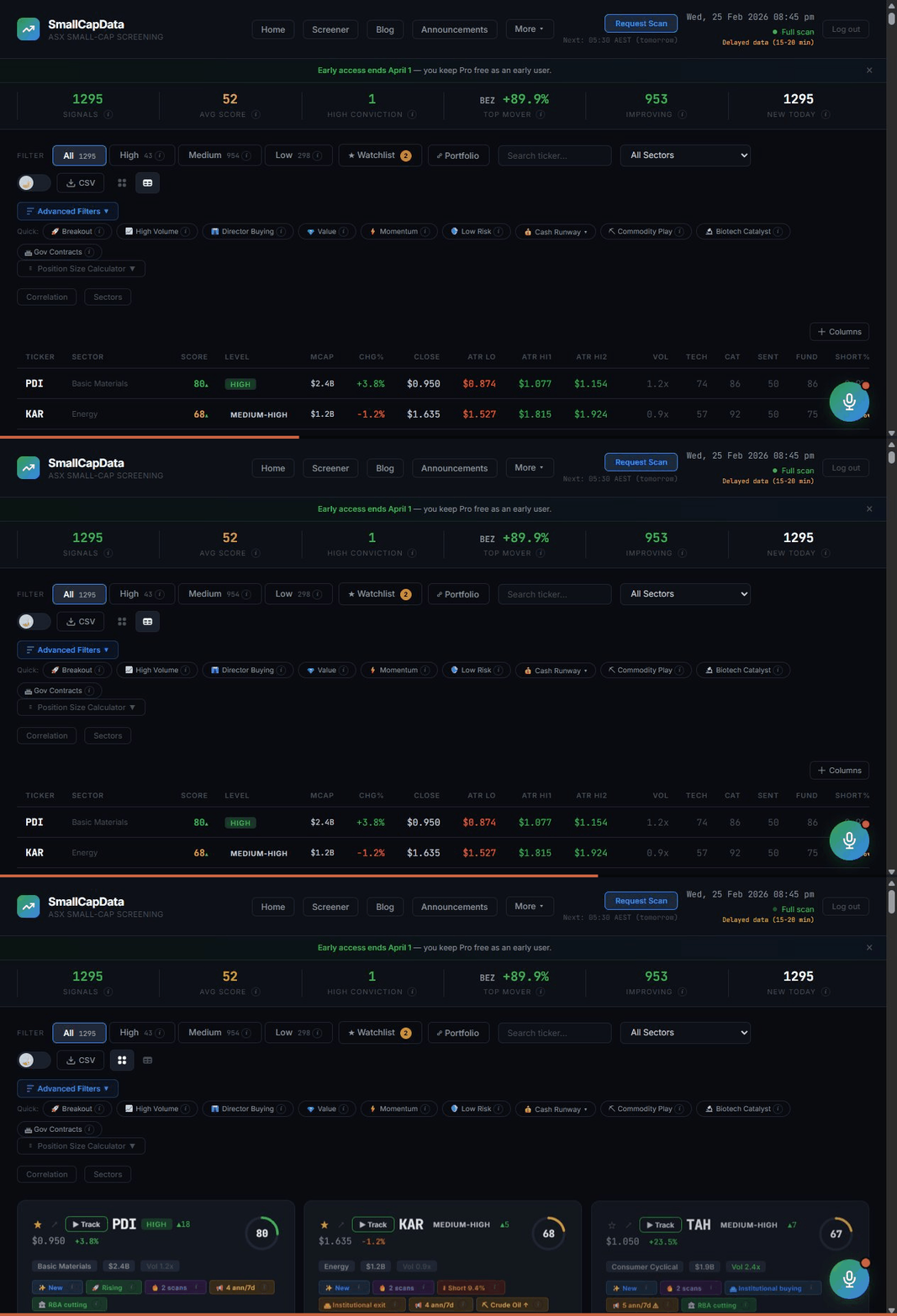
Toggle between card view (rich visual cards with dimension bars and pills) and table view (compact sortable list for scanning many signals at once). Use the view toggle buttons next to the CSV export button in the toolbar.
📊
7 Sorting & Comparing
Sort signals by conviction score, daily change, volume ratio, or sector using the sort dropdown in the toolbar. In table view, click any column header to sort ascending or descending. Compare signals side-by-side to spot which dimensions are driving each score.
Tip: Sort by volume ratio to find unusual activity. High volume + rising price often precedes a move.
📥
8 CSV Export & Sharing
Click the CSV export button in the toolbar to download your current filtered view as a spreadsheet. The export includes ticker, score, all six dimensions, daily change, volume ratio, sector, and market cap. Open it in Excel, Google Sheets, or import into your broker's platform.
Deep Analysis
4 guides
Demo: exploring a ticker detail page
9 Exploring a Ticker
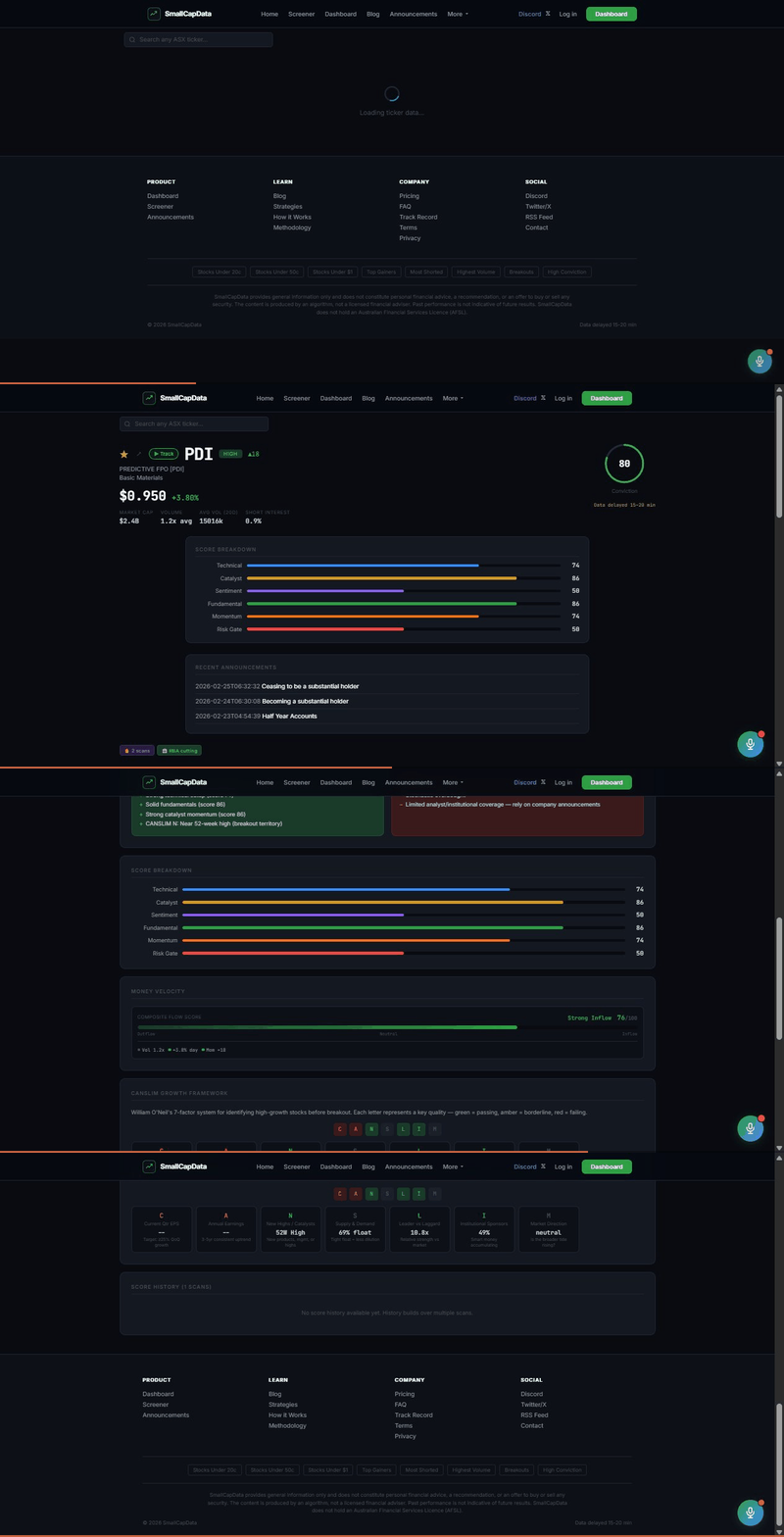
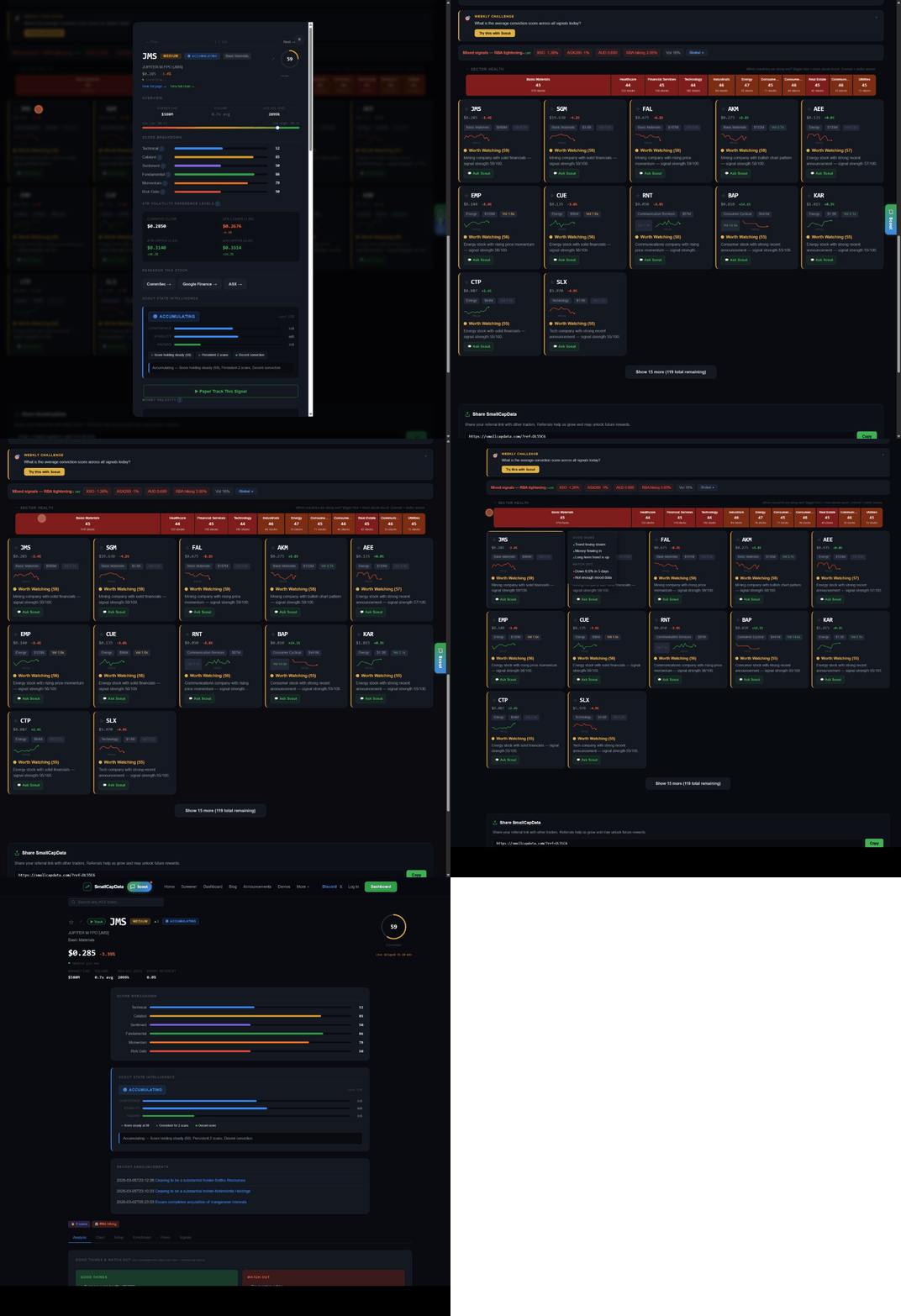
Click any signal card to open its detail page. See the full score breakdown, ATR reference levels (lower and upper), Money Velocity (smart money flow), CANSLIM analysis (7-letter fundamental framework), a TradingView chart, and community sentiment.
Tip: The detail page has tabs: Analysis, Chart, Community, Setup, Enrichment, Peers, and Signals. The 💬 Discuss button in the top nav bar jumps straight to the Community tab from anywhere on the page.
Demo: six scoring dimensions breakdown on ticker page
10 The Six Scoring Dimensions
Every signal is scored across six dimensions, each weighted differently:

Technical (20%) — Price patterns, range compression, volume trends
Catalyst (40%) — ASX announcements, director trades, clinical trials
Fundamental (20%) — Revenue, cash runway, PE ratio, market cap
Momentum (10%) — Short-term and medium-term price direction
Sentiment (5%) — Forum activity, Google Trends, short interest
Risk Gate (5%) — Red flags: dilution, suspension risk, audit concerns
Why Catalyst is 40%: In the ASX small-cap world, fresh catalysts (announcements, drill results, contracts) are the single biggest driver of price moves.
💰
11 Money Velocity & Smart Money
Money Velocity (0–100) measures the speed and direction of capital flowing into or out of a stock. It combines volume intensity, price momentum, accumulation/distribution signals, director trades, and institutional holdings.

75+ = Strong Inflow · 60–74 = Accumulating · 45–59 = Neutral · 30–44 = Weakening · <30 = Distribution
📈
12 TradingView Charts
Every ticker detail page includes an interactive TradingView chart. Switch between timeframes (1D, 1W, 1M, 3M, 1Y), add indicators, draw trendlines, and zoom in on price action. The chart loads when you click the Chart tab in the ticker detail view.
Tip: Look for the ATR reference levels marked on the chart — they give you a statistical range the price typically stays within.
Scout AI & Community
3 guides
Demo: opening Scout AI assistant
13 Asking Scout AI
Tap the Scout icon in the bottom-right corner to open Scout, the platform's AI assistant. Ask about any feature, ticker, filter, or scoring dimension. Scout has access to live dashboard data and your watchlist, so it gives answers specific to what you're looking at.

Free tier: 3 messages/day · Pro tier: Unlimited messages with deeper analysis, behavioural coaching, and exit timing insights.
Try asking: "What's the top signal right now?" or "Why does PDI score so high?" or "What sectors are trending today?"
Demo: using the glossary for instant definitions
14 Glossary & Info Icons
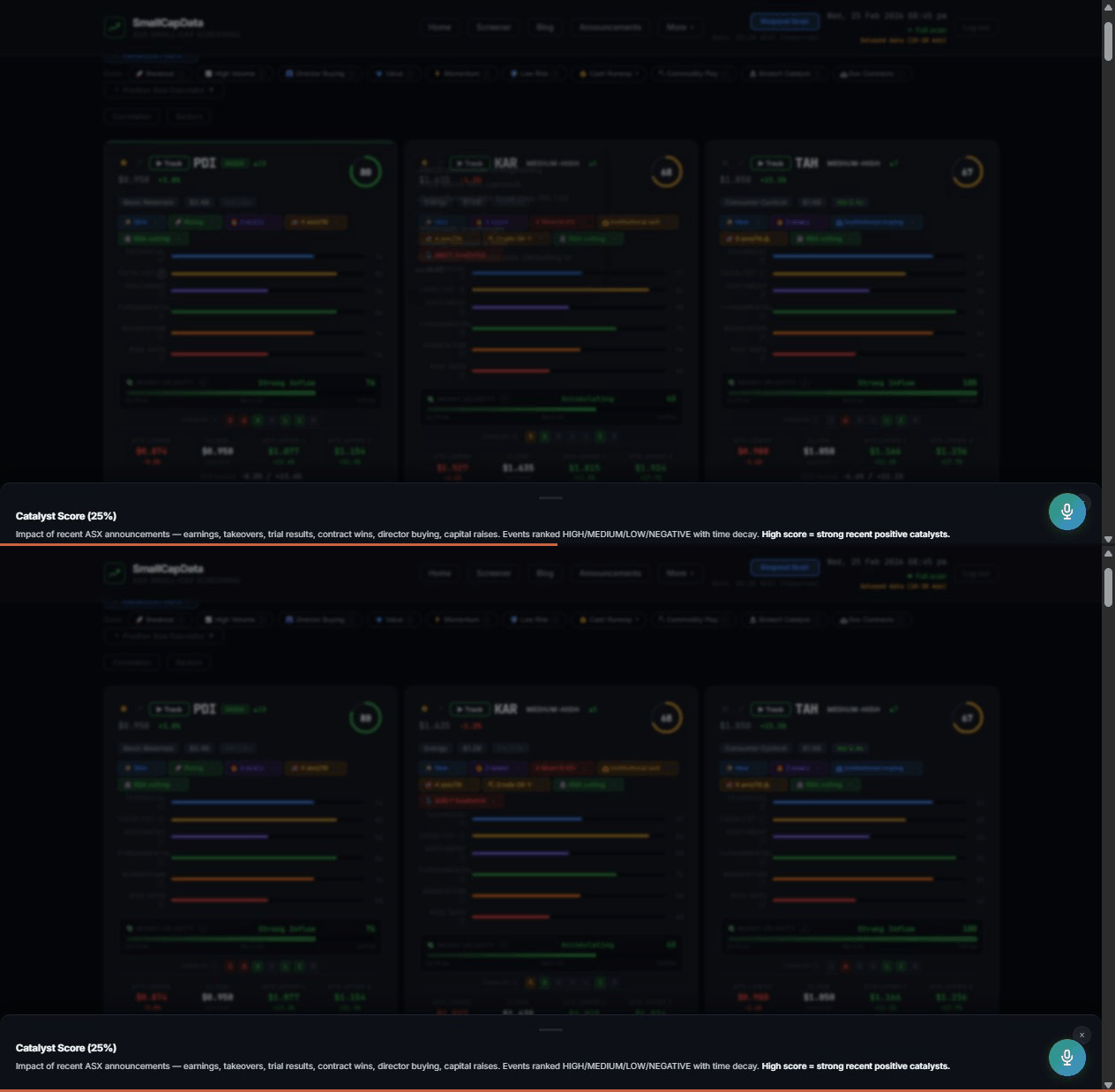
Every jargon term on the dashboard has a small (i) icon next to it. Tap the (i) to see an instant definition in a bottom sheet. Works on dimension bars, enrichment pills, quick filter buttons, CANSLIM letters, ATR levels, and more. No need to leave the page or open a new tab.
👥
15 Community Sentiment & Comments
On every ticker detail page, the Community tab (position 3, after Analysis and Chart) lets you vote your outlook: 🐂 Bull, ⚖️ Neutral, or 🐻 Bear. See live sentiment percentages and read or leave comments to share your thesis. A Community Pulse card also appears at the bottom of the Analysis tab — showing the latest comment and sentiment split — so you never have to hunt for it. Hit the 💬 Discuss button in the top nav bar to jump straight there from anywhere on the page. Community data feeds into Scout AI.
Tip: Ask Scout "What's the community saying about BLZ?" and it will summarise the latest sentiment and comments for you.
Catalyst Calendar, Portfolio Import & My Portfolio
3 guides
📅
16 Catalyst Calendar & Event Intelligence
The Catalyst Calendar tracks upcoming ASX events — earnings reports, quarterly 4C filings, AGMs, clinical trials, capital raises, director trades, and more. Events are automatically extracted from ASX announcements and enriched with historical impact data.

Free tier: 7-day event preview · Pro tier: Full 90-day horizon + event intelligence with historic impact analysis.

On ticker pages, the Event Intelligence timeline shows upcoming events for that stock. Click any event row to expand it and see how similar past events affected the stock price — including average 1-day, 5-day, and 20-day returns.

Free: 1 historic event per category · Pro: Up to 10 historic events per category.
Tip: Navigate to /calendar or look for the "Upcoming Catalysts" section on the dashboard.
📦
17 Portfolio Import (CSV)
Already holding ASX small caps? Import your existing positions via CSV upload on the Portfolio tab.

How to import:
1. Go to the Portfolio tab on the dashboard
2. Click "Import CSV"
3. Upload a CSV file with columns: ticker (e.g. BHP or BHP.AX), quantity, and optionally buy_price
4. Scout creates paper portfolio positions from your data with live P&L tracking

This is a free feature — available to all users. Imported positions are tracked just like manually added positions, with ATR reference levels and risk assessment.
Note: Portfolio Import is for educational tracking only — it does not constitute trading advice.
🚨
18 My Portfolio — Position Tracking
My Portfolio is a Pro feature that automatically monitors the health of each open paper portfolio position. It checks:

• Proximity to ATR lower reference level
• Scout State regime (Breakdown Risk or Distribution = higher risk)
• Conviction score changes since tracking started
• Days held and upcoming catalyst events

Each position gets a risk level: Green (on track), Amber (watch), or Red (review needed).

The "Should I Be Worried?" chip in Scout triggers a full portfolio health assessment. Free users see a teaser count; Pro users see full risk cards with detailed factors.
Tip: Ask Scout "Should I be worried?" to get a full portfolio health check.

Ready to explore?

Jump into the dashboard and start discovering ASX small cap signals. All features are free.

Open Dashboard Sign up free